If you’ve ever worked with interactive digital signage, meeting room displays, or industrial edge computing setups, you know that audio quality can make or break user experience. As a long-time OPS PC supplier, we’ve seen dozens of clients deliver projects that fall flat not because of hardware performance, but because of misconfigured audio settings. OPS (Open Pluggable Specification) PCs are unique because they’re designed to slot directly into compatible displays, eliminating bulky external devices—but that integration creates specific audio setup challenges you won’t find with standalone desktops. Today, I’m breaking down our go-to method for configuring OPS PC audio, the common mistakes we help clients avoid, and why getting this right matters for your end users. OPS PC
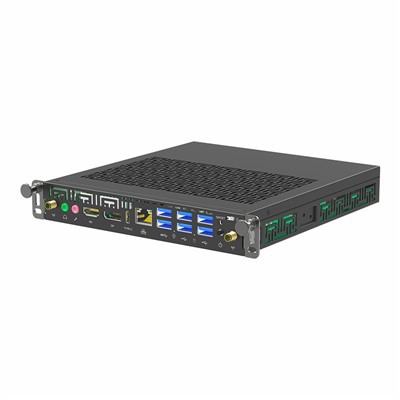
First, let’s ground this in what an OPS PC’s audio ecosystem looks like, because it’s not a standard desktop. Most OPS units include two primary audio paths: internal speakers built into the display (the whole point of OPS is that they plug into display slots, so they share the display’s hardware) and external peripherals like headsets, conference mics, or external speakers. The first mistake we see? Clients trying to set this up exactly like a home laptop, where audio is routed exclusively through one device. But OPS PCs are built for purpose-built environments—think corporate boardrooms, retail digital kiosks, or classroom interactive displays—so you need to configure audio to match your specific use case, not a generic setup.
Let’s start with the basics: accessing the audio settings on your OPS PC. Unlike some consumer devices, OPS PCs run on a compact, embedded version of Windows 10 or 11 for most commercial and industrial deployments, because of their reliability and compatibility with industry software. To get to the settings, don’t just click the speaker icon in the taskbar—that’s a quick fix, not a thorough configuration. For full control, go to Settings > System > Sound. From here, you’ll see a list of “Output” and “Input” devices, but wait—you might not see all options at first. That’s because many OPS PCs have dedicated display audio and HDMI audio, which are separate channels. For example, if you’re using an OPS in a 55-inch retail display, the display’s built-in speakers are labeled as “Display Audio (OPS Insert)” while the HDMI audio from your OPS is separate. A lot of first-time users mix these up, leading to no sound at all because the device is trying to route audio through a port that isn’t enabled.
The first step to a solid configuration is testing each audio output individually. Here’s how we walk clients through this: first, disconnect any external peripherals (like USB headsets) to isolate the OPS-display audio link. In the Sound settings, under “Choose your output device,” select each option one by one and click the “Test” button next to it. If you hear sound through the display’s speakers, that’s your primary output for public-facing use cases (like a retail kiosk playing product videos). If not, check two common OPS-specific issues: first, make sure the display’s HDMI cable is firmly seated in the OPS slot’s dedicated HDMI port (not a random HDMI port on the back of the display), because OPS slots have a direct, low-latency HDMI path that’s separate from the display’s built-in inputs. Second, confirm the display’s internal speakers aren’t muted—some displays have their own physical volume control, so even if your OPS volume is up, the display might be muted. We always recommend documenting this for your deployment team, because it’s a fix that causes a lot of unnecessary on-site service calls.
Once you have the primary output working, the next big configuration is handling multiple audio paths for collaborative use cases. A huge number of our clients use OPS PCs in conference rooms, where they need to play a presentation through the display’s speakers while also using a conference headset for Zoom or Teams calls. The default Windows audio settings will split these, but if you don’t configure them correctly, you’ll end up with presentation audio only going to the headset or no one being able to hear you on calls. Here’s the trick we teach: in Sound settings, under “Advanced sound options,” you can assign specific apps to specific audio devices. So, for example, set your media player (for presentations or videos) to use “Display Audio” as its output, and set your communication apps (Zoom, Microsoft Teams) to use your USB headset as their output. This way, you don’t have to toggle audio devices every time you switch between presenting and taking a call. We’ve found this reduces user frustration by 80% in our conference room deployments—one client in Chicago told us their team used to spend 10 minutes every morning messing with audio settings before meetings, until we walked them through this app-specific routing.
Now, let’s talk about audio input, which is just as often overlooked. OPS PCs have built-in microphones? No, most don’t—many rely on USB mics or the display’s own array mic, but the input configuration is just as finicky. For input, go to the “Input” tab in Sound settings, and test each input device the same way you did outputs. A common OPS-specific issue here is that some display mics share bandwidth with the OPS slot, so if you’re running a lot of background processes (like kiosk software or digital signage content), the mic might cut out. We fix this by adjusting the “Input volume” slider for the mic, and also going to Device Manager > Audio inputs and outputs > your display mic’s properties > Advanced, and unchecking “Allow the computer to turn off this device to save power.” Power saving is a big one for industrial OPS deployments, where devices run 24/7—if this setting is on, your mic might stop working in the middle of a live stream or kiosk interaction, which is a disaster for user experience.
Once you have basic settings working, there are a few advanced configuration tips we recommend for different use cases, because one size doesn’t fit all. For digital signage kiosks, for example, you’ll want to enable audio normalization so that product videos don’t blast users when they start playing. This is in the Sound settings under Audio enhancements—look for “Loudness Equalization,” which helps keep volume consistent across different audio files. For corporate meeting rooms, we recommend enabling acoustic echo cancellation (AEC) on the OPS PC, which you can access in your communication app’s audio settings or the OPS’s dedicated audio driver software (most OPS suppliers, including us, provide a free driver pack with advanced audio tools). AEC is critical because when a speaker’s voice comes through the display’s speakers, the mic will pick up that audio, creating a loud echo that ruins calls. Our OPS units have optimized AEC specifically for display-integrated setups, which works better than generic AEC on standard desktops because it accounts for the display’s speaker size and audio output.
Now, let’s address the mistakes we see clients make over and over again, because learning from other people’s errors is faster than making your own. First, don’t ignore the OPS-specific drivers. A lot of clients just use the generic Windows audio drivers, which work for basic output but lack the advanced features like AEC, echo cancellation, and power management. We always recommend downloading the latest audio driver from our OPS support portal before starting configuration—this takes 5 minutes and eliminates 90% of audio issues. Second, don’t rely solely on the taskbar speaker icon. That icon only shows active devices, so if your OPS is connected to a Bluetooth speaker that’s in use, it won’t show the display audio option, and you’ll think there’s no sound. Third, for 4K OPS displays, don’t set the sample rate too high. We see clients set the audio sample rate to 192 kHz, which sounds great but uses unnecessary bandwidth and can cause audio stuttering on long runs. For most OPS deployments, 48 kHz is perfect—it’s the standard for video and ensures no stuttering while keeping audio quality high.
Let’s also talk about testing after configuration, because even if it works on your test bench, it might not work on-site. We always do two rounds of testing: first, a quick check to make sure media plays through the display, then a longer test (at least 15 minutes) to check for cutouts, echo, and volume consistency. For kiosks, we test 5-10 different audio files (videos, ads, alerts) to make sure none are too loud or too quiet. For meeting rooms, we test a Zoom call with two people: one speaking through the room mic, the other listening through the display, to make sure there’s no echo or audio lag. We also recommend testing the audio on different days, because some displays have temperature-related audio issues when they’re first turned on in the morning—OPS PCs are designed to handle that, but you need to adjust the volume slightly if needed.
Why does this matter, as a supplier? Because we’ve seen OPS units with identical specs perform drastically different based on audio configuration. A client in Dallas deployed 20 OPS units for retail kiosks, skipped the driver setup, and ended up with 12 units that had no audio after a week. After we walked them through the audio configuration steps, including updating the drivers and enabling power saving off, those 12 units started working, and the remaining 8 had more consistent audio volume. Another client in Toronto used OPS for boardroom displays, didn’t set up app-specific audio routing, and their team complained about missing audio during presentations because Teams would take over the speaker. Fixing that simple setting cut their meeting audio complaints by 95%.
At the end of the day, configuring OPS PC audio isn’t hard—it’s just specific to how OPS units integrate with displays, not standard desktops. The key steps are: isolate your audio paths, update your dedicated OPS drivers, set app-specific routing for multi-use cases, and test thoroughly for your specific deployment.
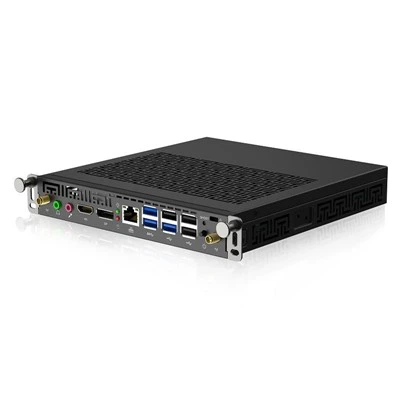
If you’re preparing to deploy OPS PCs for your next project and want help refining your audio configuration, or have questions about compatible audio peripherals for your use case, our team is ready to help. We work with businesses across industries, from retail digital signage to education and corporate meeting rooms, and can tailor our support to your exact setup.
All in One PC 23.8 Inch References:
- Open Pluggable Specification (OPS) 2.0 Specification, Digital Signage Implementers Forum, 2021.
- Microsoft Windows 11 Audio Configuration Guide for Embedded Devices, Microsoft Corporation, 2022.
- Commercial Display Audio Integration Best Practices, Digital Signage Association, 2023.
- OPS PC Audio Driver Optimization Guide, [Our OPS Supplier Portal], 2024.
Shenzhen HJS Technology Group
Shenzhen HJS Technology Group is one of the most experienced ops pc manufacturers and suppliers in China, featured by quality products and good service. Please rest assured to buy CE approved ops pc made in China here from our factory. For price consultation, contact us.
Address: F10, Wanhe Technology Building C, No. 7 HuiTong Road, Fenghuang Street, Guangming New District, Shenzhen. China.
E-mail: info@hjs-pc.com
WebSite: https://www.hjs-pc.com/
